Android & iPhone guide
How to Fill Last-Minute Salon Cancellations With a Waitlist
A client cancels at 9 a.m. and a two-hour slot sits empty. Here is how to keep a waitlist that fills it, with or without software.
 Salon Pro Business
6 min read
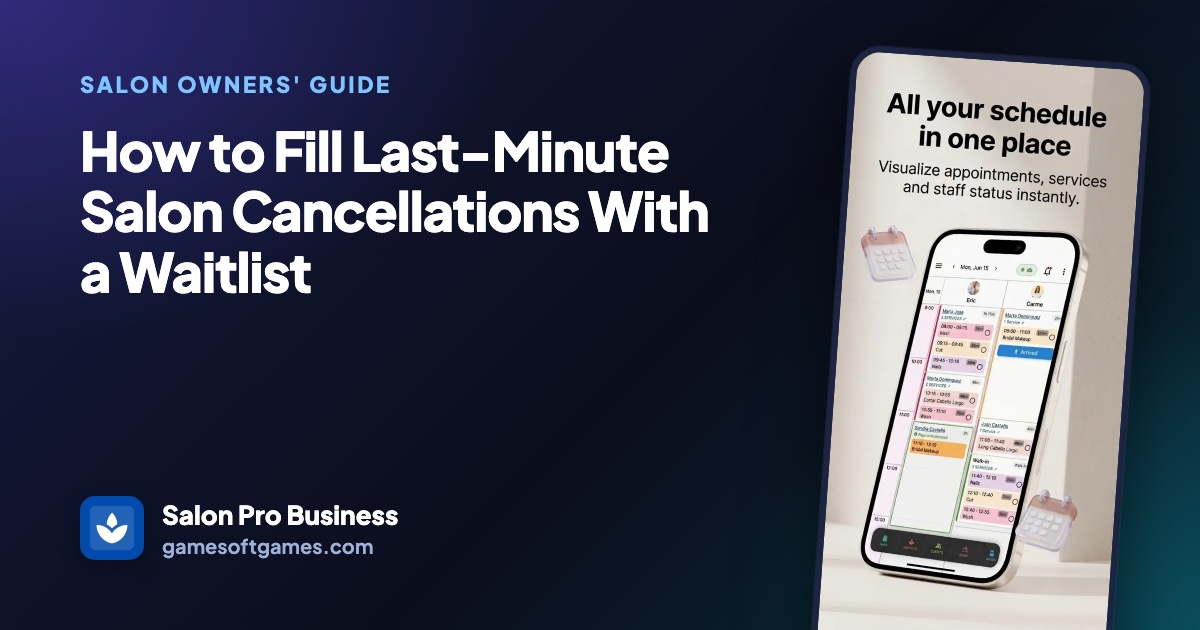
If you want to fill last-minute salon cancellations, the work starts long before the phone rings. The salons that fill gaps quickly already know who wants to come in sooner.
This guide shows how to build a waitlist that works, how to match a freed slot to the right client, and what to do when nobody on the list can make it.
Why an empty chair costs more than the missed service
A cancelled color or cut is time your stylist was paid to be there for, and it can't be sold again once the hour has passed. A few gaps a week add up to a real share of a stylist's income, especially for commission staff.
At the same time, many salons turn clients away because the next free slot with their stylist is two weeks out. Those clients would often happily take a cancellation if someone told them about it.
The gap between the two is information. Without a cancellation list, the front desk scrolls through old messages or posts the opening on Instagram and hopes, while the slot gets closer and harder to fill.
Why salon cancellations often stay empty
No list of who wants in sooner
Requests for an earlier time live in DMs, sticky notes or a stylist's memory, so nobody can find them when a slot opens.
The service doesn't fit the gap
A 45-minute opening can't hold a two-hour highlight. Matching on service duration is the first filter, and it's easy to skip under pressure.
Contacting clients too slowly
A same-day opening is worth the most in the first hour. By lunchtime, most people have already planned their afternoon.
Ignoring stylist and time preferences
Offering a 6 p.m. slot to someone who can only come in the morning, or a different stylist than the one they wait for, wastes the few minutes you have.
How to fill last-minute salon cancellations without special software
A shared spreadsheet or a notebook at the front desk is enough to start. What matters is that everyone writes requests in the same place and the same way.
Ask every client who can't get the time they want
When the date a client wants is full, offer to put them on the waitlist instead of just booking the next free day. Many will say yes and keep their later appointment as a backup.
Write down five details
Record the client's name and phone, the services they want, their preferred stylist or "anyone", the date they hope for and their time preference, such as mornings only. Add a note for limits like "must leave by 5".
Check the length before you offer
When a client cancels, look at how long the freed slot is and offer it only to people whose services fit inside it, including processing time.
Contact the best match right away
Start with the client who has waited longest for that stylist and time of day. A short personal text or a quick call works better than an email for same-day openings.
Book them and update the list
As soon as a client says yes, book the appointment, move or cancel their later backup booking, and cross them off the list so nobody calls them again.
Clean the list every week
Remove clients whose date has passed or who already booked. A long list of old names makes the next search slower.
The faster way
Keep a salon waitlist in Salon Pro Business
Salon Pro Business is a salon scheduling app that fills cancellations from a built-in waitlist. It keeps each waiting client's services, stylist and time preferences next to your calendar, and when you cancel an appointment it checks the list for someone who fits the freed time.
Add a client to the waitlist
In the calendar, open the menu and choose Waitlist, then Add to Waitlist. Pick the client and the services, choose a stylist or any available staff, and set the date they want.
Set flexibility and time of day
Turn on Flexible Date if the client can come on other days, and choose Morning, Afternoon, Evening or Any. Add a note such as "needs to leave by 5 PM".
Cancel the appointment in the calendar
When a client cancels, cancel their appointment from the calendar. The app looks through the waitlist for a client whose date, time of day and stylist fit, and whose services fit inside the freed time.
Confirm and book the match
If it finds someone, a Waitlist Match Found window shows the client and the services they want. Call or text them, and when they say yes, tap Book Them to put them in that slot with the same stylist.
Search for a slot from any entry
You can also tap Book on a waitlist entry. The app searches the stylist's free time in 15-minute steps, skipping days off, and proposes the first opening that fits the services and the client's time of day.
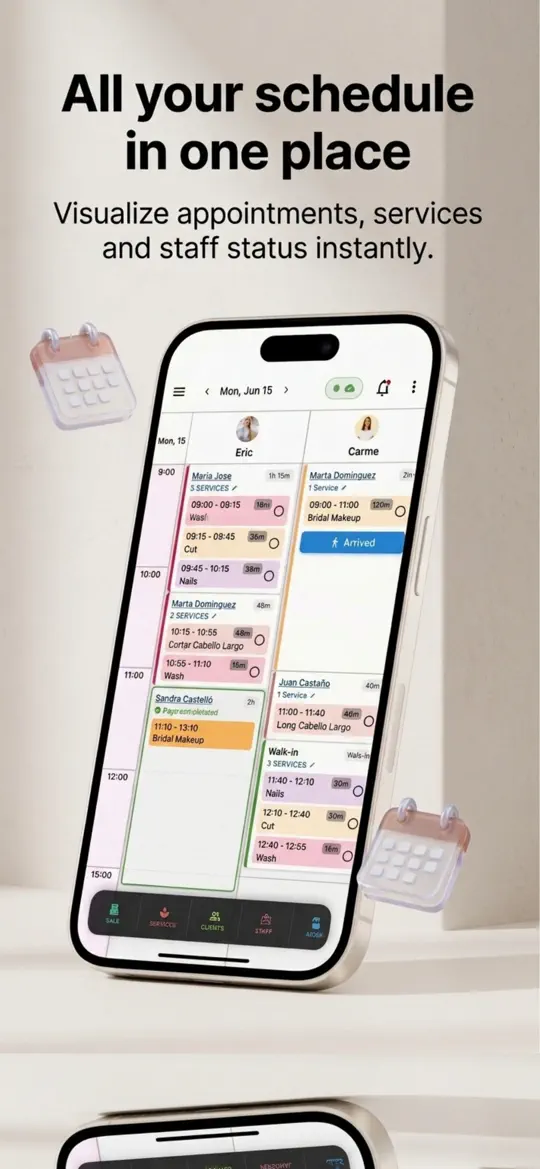
- Matches by length, stylist and time of day
Only clients whose services fit the freed slot are suggested, so you don't offer a two-hour service in a 45-minute gap.
- One-tap booking
The new appointment is created with the waitlist services and prices and tagged as a waitlist match, and the entry is marked as booked.
- Waiting clients in the Action Center
Active waitlist entries appear in the app's alerts, oldest date first, and a tap starts a search for a free slot.
- Old entries clear themselves
Entries drop off the active list after their date passes, and flexible ones a week later, so the list stays current.


Tips to improve your waitlist fill rate
- Mention the waitlist at checkout and on your booking confirmation, so clients know they can ask for an earlier time.
- Keep each client's later appointment as a backup until the earlier one is confirmed, then cancel the backup right away so it can be filled too.
- Track your fill rate: how many cancelled slots you filled each month. It shows whether the list is big enough.
- When nobody on the list fits, post the opening in your Instagram or Facebook story with the stylist, service and time.
- Keep any last-minute discount small and occasional, so regular clients don't learn to wait for deals.
Frequently asked questions
How do salons fill cancellations?
Most use a waitlist of clients who want an earlier time and contact the best match as soon as a slot opens. If nobody on the list fits, they post the opening on social media or offer it to regulars who are due for a visit.
Should I offer a discount for last-minute appointments?
It can help with hard-to-fill times, but keep it small and occasional. Clients on a waitlist usually want the earlier slot itself, not a discount.
How long should a client stay on a salon waitlist?
Until their date has passed or they're booked. Clean the list weekly so you only contact clients who still want the slot.
Should I text the whole waitlist at once?
For a single slot, contact the best match first to avoid several people saying yes to one opening. When several slots open on the same day, offering all of them to a few clients at once can be faster.
What to do when nobody on the waitlist can come?
Post the opening in your social media stories, message regular clients who are due for their next visit, or use the time for training, product orders or a walk-in.
Summary
To fill last-minute salon cancellations, keep a waitlist with each client's services, stylist, date and time of day, match the freed slot by length first, and contact the best match within the hour. Salon Pro Business keeps that waitlist next to your calendar, suggests a waiting client when you cancel an appointment and books them with one tap. Try it the next time a client asks for an earlier time.
More guides
 Android & iPhone
How to Set Up Online Booking for a Salon (Step by Step)
Clients want to book at 10 p.m. without calling. Here is how to prepare your services, set simple rules and share one booking link where clients already look.
Android & iPhone
How to Manage Salon Staff Time Off Without Booking Gaps
A stylist's day off only causes trouble when nobody wrote it down. Here is a simple policy and calendar routine to keep time off fair and bookings clean.

 Android & iPhone
What to Do When the Gym Is Busy: Smart Exercise Swaps
Every squat rack is taken and the bench has a line. Here is how to keep your workout on plan by reordering and swapping exercises instead of waiting.