iPhone guide
How to Fill and Sign a PDF on iPhone Without Printing
Someone sent a form to sign and you're nowhere near a printer. Here is how to fill it in, add your signature and send it back from your iPhone.
 Simple Pdf-reader
6 min read
If you need to fill and sign a PDF on iPhone, you don't need a printer, a scanner or a computer. A lease, a school permission slip or a contractor's quote can go back to the sender in a few minutes.
This guide covers the free tools built into iOS, what to do when a form won't let you type, and how to keep a clean signed copy.
Why signing a PDF on a phone feels harder than it should
Many forms still arrive by email with the words "print, sign and scan". Most people don't own a printer anymore, and scanning a signed page with a phone camera creates a large, crooked file.
Signing directly on the PDF avoids all of that. The text stays sharp, the file stays small, and you can send it back from the same email thread.
The tricky part is that PDFs come in two kinds. Some have form fields you can tap and type into. Others are just pictures of a paper form, so there is nothing to tap and you have to place text yourself.
Common reasons a PDF form won't cooperate
The form has no fields
A scanned form or a PDF exported without fields can't be typed into directly. You need to add text boxes on top of it.
Markup is hard to find
The Markup button sits in different places depending on the app that opened the PDF, such as Mail, Files or Safari.
The signature is too big or crooked
A signature drawn with a finger often needs resizing to fit a small signature line.
The original gets changed
Signing in Markup saves over the file, so the blank form is gone unless you made a copy first.
How to fill and sign a PDF on iPhone with built-in tools
These steps are free and work on recent iOS versions. Button names can differ slightly between versions and apps.
Save the PDF to Files
If the form came by email or message, open it and use Share > Save to Files. Working from Files is the most reliable way to find Markup.
Open it and tap Markup
Open the PDF in the Files app and tap the Markup button (a pen tip). On iOS 26 you can also open it in the Preview app, which Apple recommends for filling in and signing forms.
Fill in the form
If the PDF has form fields, tap a field and type. Recent iOS versions can offer AutoFill for your name, address and other details. If nothing happens when you tap, the form has no fields: tap the plus button, choose Add Text, and drag the text box to the right spot.
Add your signature
Tap the plus button and choose Add Signature. Draw your signature with your finger the first time; iPhone remembers it for next time. Drag it onto the line and pinch the corners to resize it.
Tap Done and send it
Tap Done to save. Then use the Share button to send the signed PDF by Mail or Messages, or attach it to your reply.
Keep a blank copy if you need one
Markup saves over the original file. Before you start, press and hold the PDF in Files and tap Duplicate if you want to keep the blank form.
The faster way
Fill and sign a PDF on iPhone with Simple Pdf-reader
Simple Pdf-reader is a PDF signer app for iPhone that adds text and signatures to any PDF, including scanned forms with no fields. It saves the result as a new copy, so your original stays untouched, and it works offline.
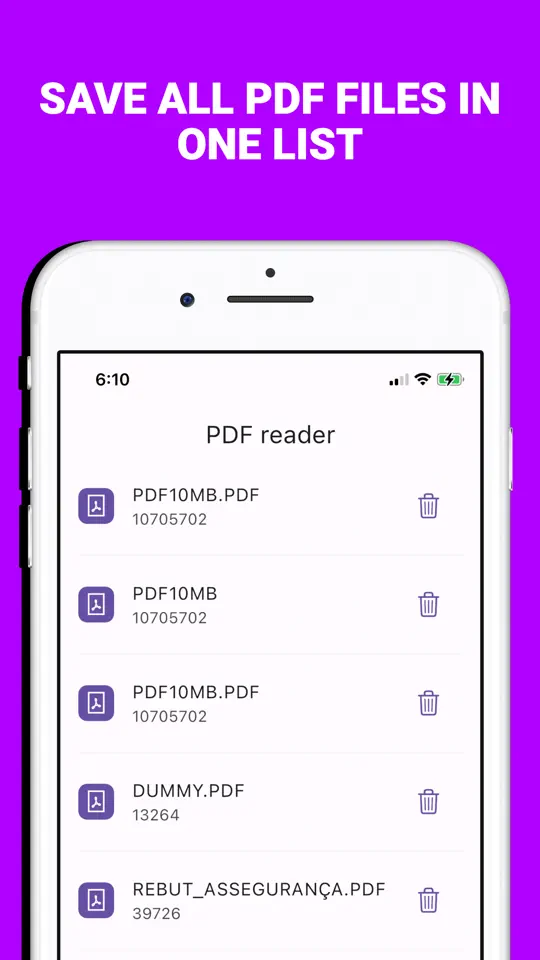
Add the form to your library
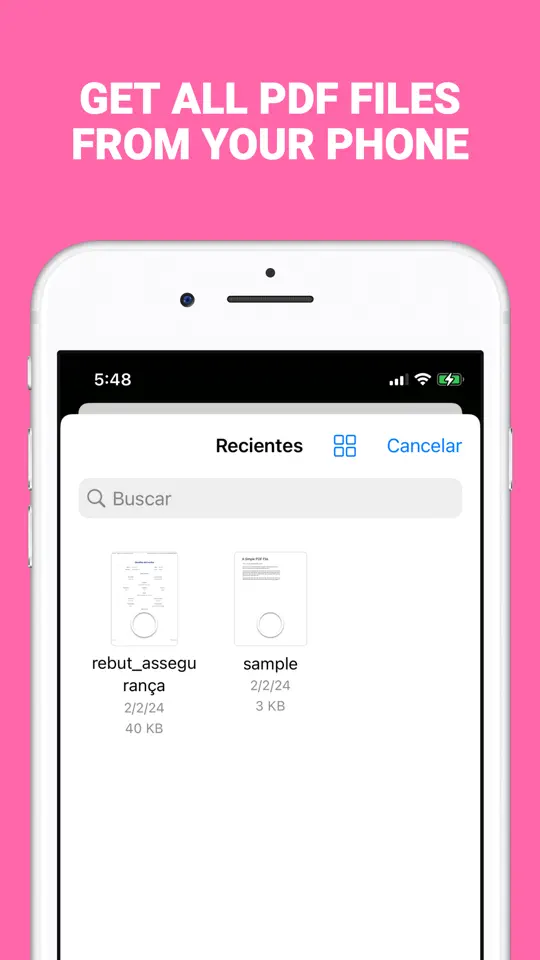
Import the PDF from the Files app, or save it to the On My iPhone > Simple Pdf-reader folder in Files, where the app picks it up automatically.
Type your details onto the page
Open Edit Text from the file's menu, tap where the text should go and type. Choose the font size, color and alignment so it matches the form, and drag the box onto the line. The app saves this as a new edited copy.
Cover mistakes with whiteout
Switch to whiteout to place text on a solid background, which covers an old date or a wrong entry so you can write over it.
Create and place your signature
Open Sign, draw your signature with your finger and save it. Pick it from your saved signatures, move it onto the signature line and resize it. Tap Save, and a new copy named with "_signed" appears in your library.
Send or print the signed copy
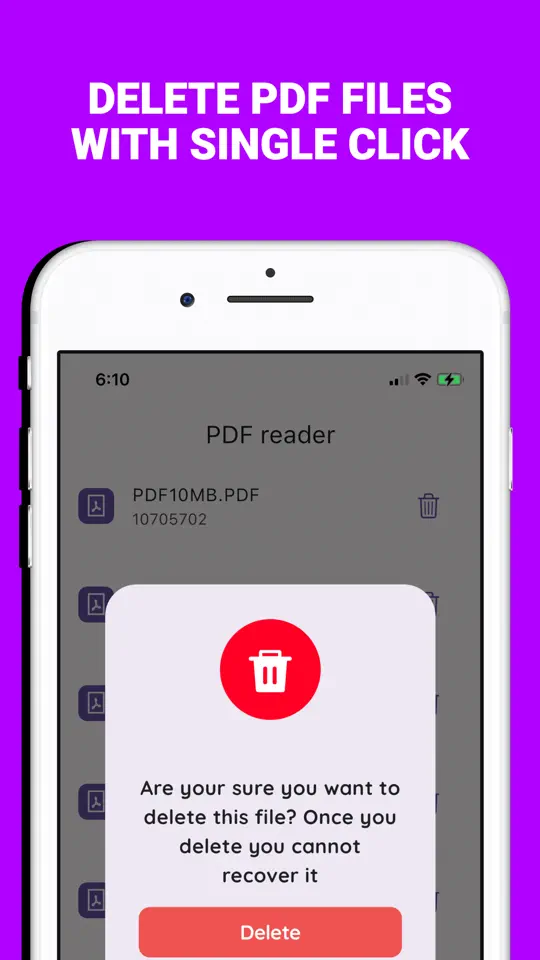
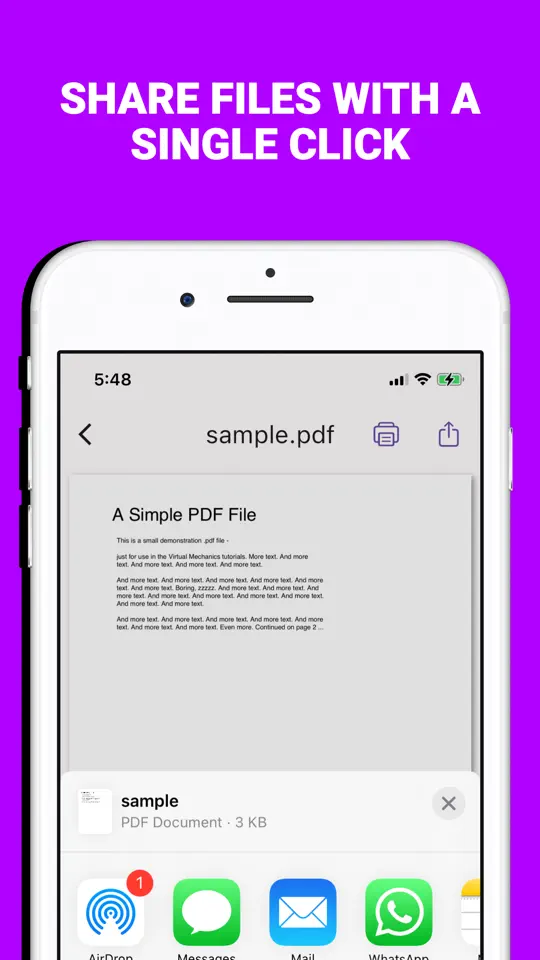
Share the signed PDF from its menu by Mail, Messages, AirDrop or WhatsApp, or print it with AirPrint.
- Works on forms without fields
Place text anywhere on the page, so scanned and flat forms can be filled in too.
- Saved signatures
Store more than one signature, such as a full signature and your initials, and reuse them on the next document.
- Original kept
Signing and editing create new copies, so the blank form is still there if you need to start over.
- Whiteout tool
Cover a wrong entry cleanly instead of crossing it out.
- Offline and private
Contracts and IDs are edited on your iPhone and never uploaded to a server.

Tips for signing PDFs that get accepted the first time
- Sign on the actual signature line and keep the signature about the height of the surrounding text.
- Fill in every date and initial box the sender asked for before you send it, so it doesn't come back.
- Zoom in after signing to check that nothing covers printed text.
- Give the signed file a clear name, such as the document and the date, so you can find it later.
- In Simple Pdf-reader, Sign and Edit Text are premium tools: a subscription unlocks them, or you can watch a short video to use one for free.
Frequently asked questions
How do I sign a PDF on my iPhone for free?
Open the PDF in the Files app, tap Markup, then the plus button and Add Signature. Draw your signature, place it on the line and tap Done.
How do I fill in a PDF form that has no fields?
Add text boxes on top of the page. In Markup, tap the plus button and choose Add Text, then drag each box to the right line. A PDF app with an add-text tool does the same with more control over size and alignment.
Is a signature drawn on an iPhone legally binding?
In the US, the federal ESIGN Act gives electronic signatures the same legal effect as handwritten ones for most transactions. Some documents are excluded, such as wills, and state rules can add exceptions, so check for anything unusual.
Why can't I type in a PDF form on iPhone?
The form probably has no fillable fields, for example because it was scanned. Use Add Text in Markup, or an app that places text anywhere on the page.
Can I save my signature on iPhone for next time?
Yes. Markup remembers the signatures you create, and Simple Pdf-reader keeps a list of saved signatures you can reuse.
Summary
To fill and sign a PDF on iPhone, open it in Files or Preview, use Markup to type or add text, then Add Signature, and share the result. When a form has no fields or you want to keep the original, Simple Pdf-reader adds text, whiteout and saved signatures and saves each change as a new copy, all offline. Try it on the next form someone asks you to print and sign.
More guides
iPhone
How to Compress a Scanned PDF on iPhone for Email
A five-page scan can easily be too big to email. Here is why scanned PDFs get so large and three ways to shrink them on your iPhone.
iPhone
How to Make Your iPhone Read a PDF Aloud
Your iPhone can read any PDF out loud. Here is how to turn it on in Settings, and how to get smoother, page-by-page listening.

 Android & iPhone
What to Do When the Gym Is Busy: Smart Exercise Swaps
Every squat rack is taken and the bench has a line. Here is how to keep your workout on plan by reordering and swapping exercises instead of waiting.