iPhone guide
How to Make Your iPhone Read a PDF Aloud
Your iPhone can read any PDF out loud. Here is how to turn it on in Settings, and how to get smoother, page-by-page listening.
 Simple Pdf-reader
5 min read
Listening is often easier than reading. If you want to read a PDF aloud on iPhone, while you cook, walk or rest your eyes, you don't need to install anything first: iOS has text to speech built in.
This guide shows the built-in way step by step, explains why it sometimes stops or reads the wrong things, and shows a smoother way to listen to a PDF from start to finish.
Why reading a PDF aloud on iPhone isn't obvious
Apple doesn't put a read aloud button in the Files app or the PDF viewer. The feature lives in the accessibility settings, so many people never find it.
The built-in tools also read whatever is on the screen, not the document itself. That works well for a page or two, but long PDFs with headers, page numbers and multiple columns can sound messy.
And some PDFs can't be read at all, because they are just pictures of pages. Knowing which kind of PDF you have saves a lot of frustration.
When you'll want your iPhone to read a PDF to you
Long reports and study notes
Listening lets you get through work documents or course material while you commute or do something else.
Tired eyes
After a day at a screen, hearing a document is easier than reading small text.
Checking your own writing
Hearing a letter or CV read aloud makes typos and clumsy sentences easy to spot.
Reading support
People with dyslexia or low vision often understand a document better when they can listen along.
How to read a PDF aloud on iPhone with Speak Screen
Speak Screen is built into every recent iPhone and iPad. These steps are for iOS 26; on older versions the menu is called Spoken Content instead of Read & Speak.
Open Read & Speak settings
Go to Settings > Accessibility > Read & Speak. On iOS 18 and earlier, tap Spoken Content instead.
Turn on Speak Screen
Switch on Speak Screen. You can also switch on Speak Selection to read only the text you highlight.
Open your PDF
Open the document in the Files app, Books or any PDF viewer, and go to the page where you want to start.
Swipe down with two fingers
Swipe down with two fingers from the very top of the screen. Your iPhone starts reading, and a small control panel appears. You can also ask Siri to "speak screen".
Control the speed
Use the controls to pause, skip, or speed up and slow down the voice. Tap the arrow to shrink the panel to a small icon while it reads.
The faster way
Listen to a whole PDF with Simple PDF Reader
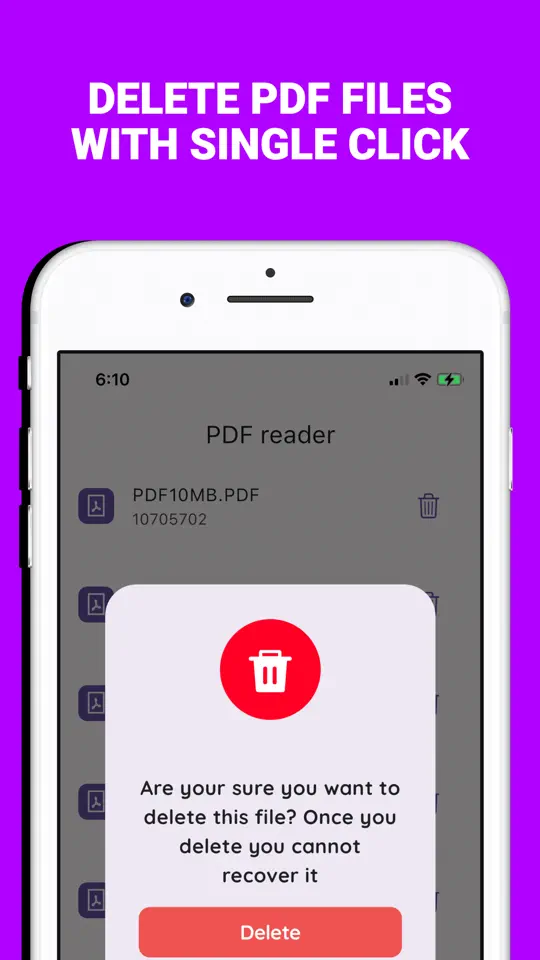
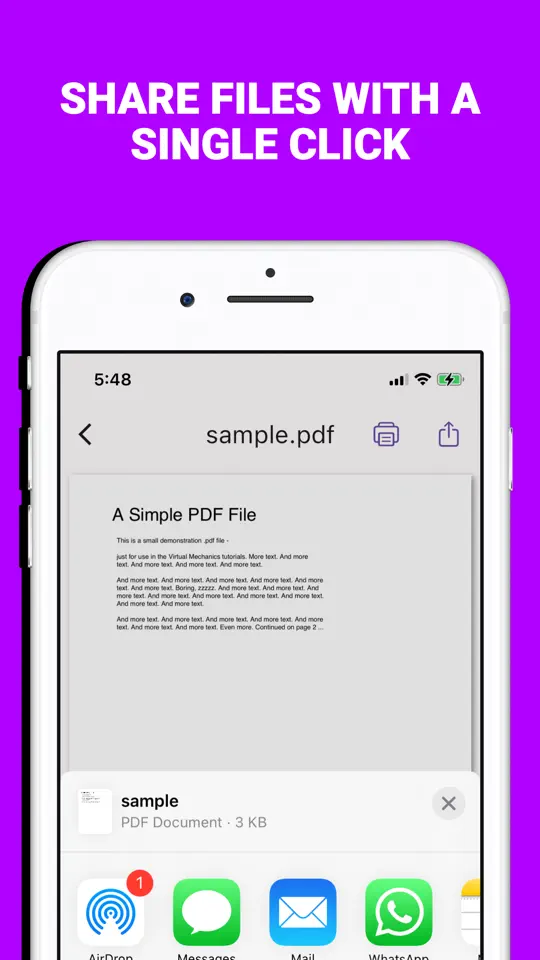
Speak Screen reads the screen; Simple PDF Reader reads the document itself. It is a PDF reader for iPhone and iPad that reads aloud page by page with natural pauses, so long files sound like a narrated book instead of a list of words.
Open the PDF in the app
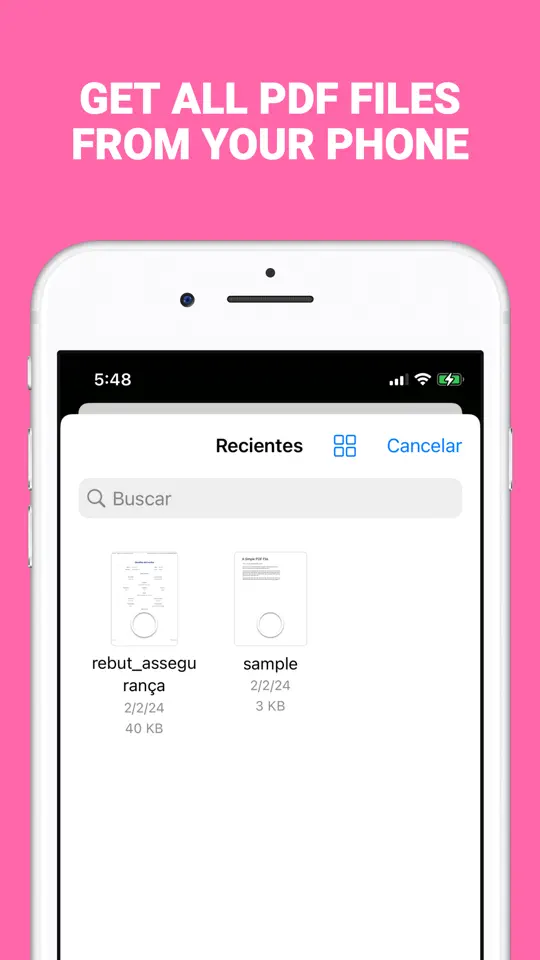
Import your file, or save it to the Simple PDF Reader folder in the Files app and it appears in your library automatically.
Choose Read Aloud
Open the document's options and tap Read Aloud. It is one of the app's Pro tools: you can unlock it for your current session, or keep it with Pro.
Listen from the page you're on
Reading starts on the current page and moves to the next page by itself. The player shows the sentence being read and which page you are on.
Pick your voice and speed
Change the speed from the player, and choose and preview any voice and language installed on your device in the app's settings.
- Natural pacing
Pauses at headings and paragraphs and joins words split across lines, so text to speech PDF reading sounds smooth.
- Page-by-page reading
Keeps going to the next page on its own, with the current sentence and page number on screen.
- Voice selector
Preview the voices and languages on your iPhone and pick the one you like best.
- Plays with the silent switch on
You still hear the reading when your iPhone is set to silent.
- On-device text recognition (OCR)
Pulls the text out of scanned pages so you can copy it, without uploading anything.

Tips for better listening
- Download a better voice: in Settings > Accessibility > Read & Speak > Voices, pick your language and download an Enhanced or Premium voice.
- Start at a slightly slower speed for technical documents, then speed up once you are used to the voice.
- Use headphones in public; the reading keeps your place even if you pause for a while.
- On iOS 26, try Accessibility Reader in Read & Speak for a clean, distraction-free view of the text while it is read.
- If nothing is read, try selecting a word in the PDF. If you can't select text, the file is a scan and needs text recognition first.
Frequently asked questions
Can an iPhone read PDF files aloud without an app?
Yes. Turn on Speak Screen in Settings > Accessibility > Read & Speak, open the PDF and swipe down with two fingers from the top of the screen.
How do I turn on Speak Screen on iPhone?
Go to Settings > Accessibility > Read & Speak (Spoken Content on iOS 18 and earlier) and switch on Speak Screen.
How do I change the read aloud voice on iPhone?
In Read & Speak, tap Voices, choose your language and pick a voice. Enhanced and Premium voices sound more natural and download once.
Why won't Speak Screen read my PDF?
The PDF is probably a scan, which is a picture of text rather than real text. Run text recognition (OCR) on it first. If Speak Screen stops after an iOS update, restarting the iPhone often helps.
Does reading aloud work offline?
Yes. Speak Screen and Simple PDF Reader both use the voices installed on your iPhone, so no internet connection is needed once a voice is downloaded.
Summary
Your iPhone can read a PDF aloud for free with Speak Screen, which is perfect for a page or two. For longer documents, Simple PDF Reader reads the file itself page by page with natural pauses, your choice of voice and speed, so you can simply press play and listen.