iPhone guide
How to Compress a Scanned PDF on iPhone for Email
A five-page scan can easily be too big to email. Here is why scanned PDFs get so large and three ways to shrink them on your iPhone.
 Simple Pdf-reader
6 min read
If you need to compress a scanned PDF on iPhone, you have probably just tried to email a contract, a tax form or a stack of receipts and been told the file is too large.
This guide explains why scans get so big, what the built-in tools can and can't do, and how to shrink a scan enough to send it, without losing the parts you need to read.
Why scanned PDFs are so large
A PDF made in Pages or Word stores text as text, which takes very little space. A scan is different: every page is a photo of paper, so the file is really a stack of high-resolution images. That is an image-based PDF, and a few pages can add up to many megabytes.
Size matters as soon as you send it. Many email services cap attachments at around 20 to 25 MB, and Gmail's email attachment limit is 25 MB. Upload forms for banks, schools and government sites often accept much less.
The iPhone's built-in tools are made to keep quality, not to squeeze hard, so a scan can come out of them nearly the same size.
What makes a scan bigger than it needs to be
High scan resolution
Scanners in the Files and Notes apps capture plenty of detail. For a printed letter, a lower scan resolution would still be perfectly readable.
Full color for black-and-white pages
A color scan of a black-and-white form stores color information nobody needs.
Many pages in one file
Every page is its own image, so a 20-page scan is roughly 20 times the size of one page.
Photos added as pages
Turning camera photos into a PDF keeps the full camera resolution of each picture.
How to compress a scanned PDF on iPhone without an app
Start with the free options. They take a minute and may be enough for a short scan.
Try Optimize File Size in the Files app
Open the Files app, press and hold the PDF, then tap Quick Actions > Optimize File Size. The smaller version is saved in the same folder. To do several files, tap the three dots, choose Select, pick the PDFs and use the three dots at the bottom.
Check the new size
Press and hold the file and tap Get Info to see its size. If it barely changed, the pages are high-resolution images that this option keeps.
Don't use Compress for this
The Compress option in the Files app makes a ZIP archive, not a smaller PDF. Many people and upload forms can't open a ZIP easily.
Use a Shortcut for heavy compression
In the Shortcuts app you can build a shortcut that splits the PDF into pages, turns each page into a lower-resolution JPEG with Make Image from PDF Page, then joins them again with Make PDF. It is a few minutes of setup, but it can reduce PDF file size a lot for scans.
Rescan smarter next time
For text documents, scan in grayscale or black and white and keep only the pages you need. Smaller input means a smaller file.
Send it with Mail Drop instead
If the file is still too big and you use the Mail app with iCloud, Mail Drop can send attachments up to 5 GB as a download link. The link expires after 30 days.
The faster way
Compress a scanned PDF on iPhone with Simple Pdf-reader
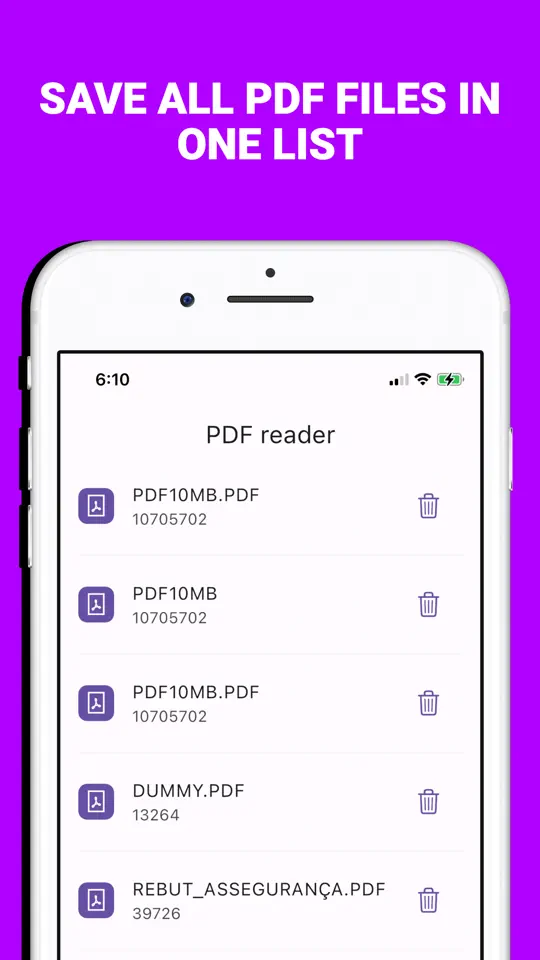
If building a Shortcut sounds like too much, Simple Pdf-reader is a PDF compressor app for iPhone that does the same image-based compression in a few taps. It works offline, so your documents are processed on the phone and never uploaded.
Add the PDF to the app
Import the scan from the Files app into your Simple Pdf-reader library.
Open Compress PDF
Tap the menu next to the file and choose Compress PDF, or open the Tools tab and pick the file there. Compress is a premium tool: unlock it with a subscription, or watch a short video to use it for free.
Pick a level
Choose Low (best quality), Medium (a balance of quality and size) or High (smallest file, lower quality). Medium is a good start for most scans.
Check the result
The app saves a new, smaller copy and keeps your original. It shows the size before and after and the percentage saved. If it can't make the file smaller, it says so and doesn't add a useless copy.
Send it
Share the smaller copy from the file's menu by Mail, Messages or AirDrop.
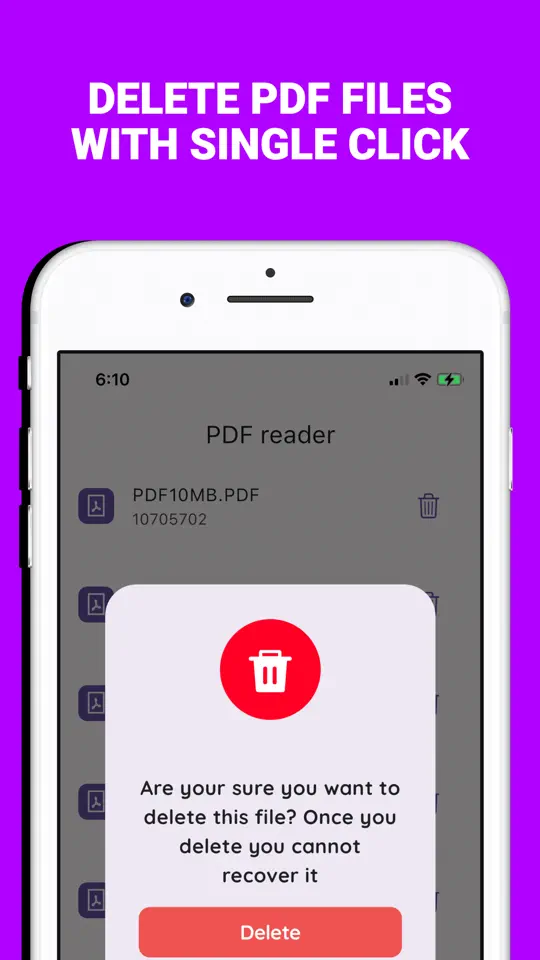
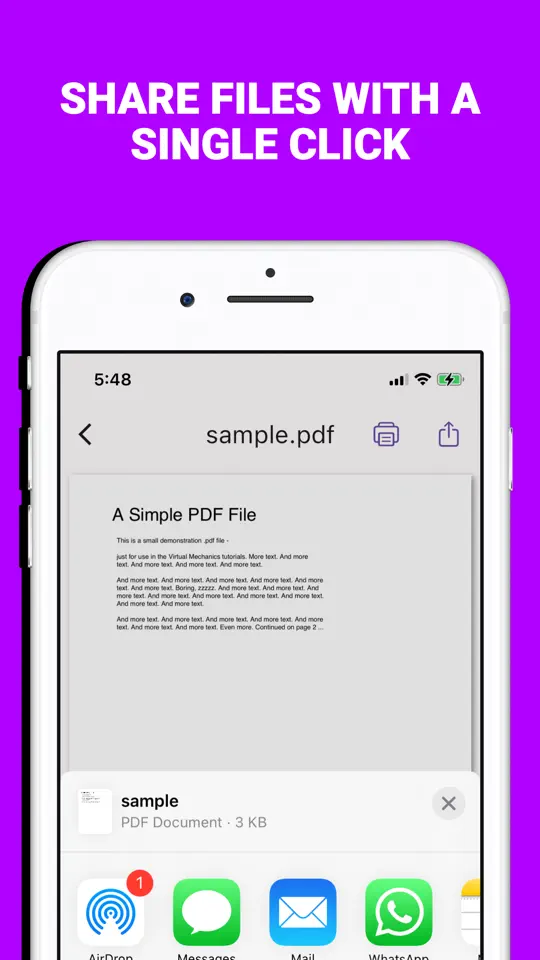
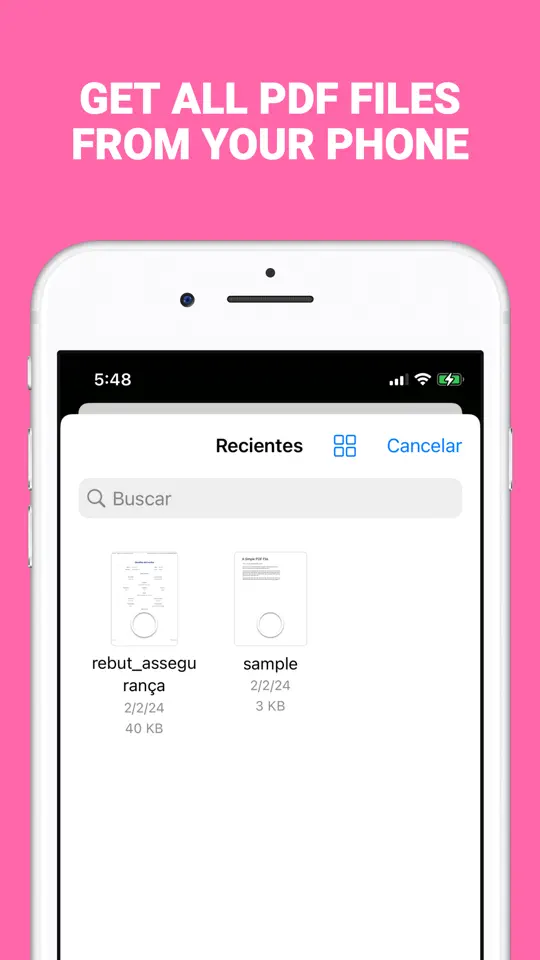
- Three compression levels
Trade a little sharpness for a much smaller file only as far as you need to.
- Original kept
The compressed version is a separate copy, so the full-quality scan is still there if you need it.
- Before and after sizes
You see right away whether the file is now small enough for the email or upload form.
- Works offline on your iPhone
Tax forms, IDs and contracts are compressed on the device, not on a website.

Tips for smaller scans that are still readable
- Zoom in on the smallest print after compressing, such as signatures or account numbers, before you send the file.
- Image compression turns each page into a picture, so text in the smaller copy can't be selected or searched. Keep the original if you need that.
- Use this kind of compression for scans and photo-heavy PDFs. A text PDF from Word or Pages is usually small already and may even get bigger as images.
- Split a very long scan into two emails, or remove pages nobody needs, if one file is still too large.
- Name the compressed file clearly, for example with "small" at the end, so you don't send the wrong version later.
Frequently asked questions
Why is my scanned PDF so big?
Each page of a scan is stored as a high-resolution photo of the paper, so the file is really a stack of images. More pages, color and higher resolution all add size.
Can I compress a PDF on iPhone without an app?
Yes. In the Files app, press and hold the PDF and choose Quick Actions > Optimize File Size. For scans, a Shortcut that re-saves each page as a lower-resolution image usually shrinks the file much more.
Why didn't Optimize File Size make my PDF smaller?
It is gentle by design and keeps high-resolution images, so a scan made of large page images may only shrink a little. You need to lower the image resolution to get a big reduction.
Does compressing a PDF reduce quality?
Strong compression of a scan lowers image detail, and the pages become pictures, so text can't be selected. Start with a lighter setting and check that small print is still readable.
What is the email attachment size limit?
It depends on the service. Gmail allows 25 MB, and many others are around 20 to 25 MB. With the iPhone Mail app and iCloud, Mail Drop can send up to 5 GB as a link that lasts 30 days.
Summary
To compress a scanned PDF on iPhone, try Optimize File Size in the Files app first, then lower the image resolution if the scan is still too big. A Shortcut can do it for free with some setup. Simple Pdf-reader does it in a few taps, offline, with three levels and your original kept safe. Try it on your next scan before you hit the attachment limit.
More guides
 iPhone
How to Fill and Sign a PDF on iPhone Without Printing
Someone sent a form to sign and you're nowhere near a printer. Here is how to fill it in, add your signature and send it back from your iPhone.
iPhone
How to Make Your iPhone Read a PDF Aloud
Your iPhone can read any PDF out loud. Here is how to turn it on in Settings, and how to get smoother, page-by-page listening.
 Android & iPhone
What to Do When the Gym Is Busy: Smart Exercise Swaps
Every squat rack is taken and the bench has a line. Here is how to keep your workout on plan by reordering and swapping exercises instead of waiting.