iPhone guide
How to Password Protect Files and Documents on iPhone
The Files app has no folder lock. Here is what iPhone can protect on its own, where the gaps are, and how to keep tax forms, IDs and contracts behind a PIN.
 Secret Photos Vault
6 min read
If you want to password protect files on iPhone, you'll quickly notice that the Files app has no lock button. A scan of your passport sits next to your grocery list, open to anyone holding your unlocked phone.
This guide shows what iPhone can protect by itself, where those options stop, and how to keep sensitive documents behind a separate PIN.
Why there's no way to lock a folder on iPhone
Your iPhone encrypts everything on it while it's locked. The gap is the moment it's unlocked: anyone you hand it to, a child playing a game or a friend looking at photos, can open the Files app and read every document.
Apple protects some file types one at a time, such as PDFs and Pages documents, but there's no setting to lock a folder on iPhone with its own password. That matters for the files people keep on their phone more and more: tax returns, bank statements, ID scans, medical letters and contracts.
So the real question isn't whether one file can get a password. It's how to protect a whole group of documents without setting a password on each file and remembering all of them.
Common situations where documents are left open
Sharing an unlocked phone
Handing your phone over to show a photo or a map also hands over the Files app and everything in it.
Scans saved straight to Files
Documents scanned with the iPhone go into a normal folder, with no password at all.
Email attachments saved for later
A pay stub or lease saved from an email stays in your downloads long after you needed it.
Deleted files that aren't gone
Deleting a file in Files moves it to Recently Deleted, where it stays for up to 30 days.
How to password protect files on iPhone with built-in tools
These options are free and built in. Each one covers part of the problem, so combine the ones that fit your files.
Lock a PDF with a password
Open the PDF in the Files app, tap the Share button and choose Lock PDF, then enter a password twice. On recent iOS versions this saves the file with a password, and anyone opening it must type it.
Set a password on Pages, Numbers or Keynote files
In Pages, open the document, tap the More button, then Document Options and Set Password. A Pages document password also works in Numbers and Keynote, and you can choose to require it when you export a copy as a PDF.
Lock the Files app with Face ID
On iOS 18 or later, press and hold the Files icon and tap Require Face ID. The app then asks for Face ID each time it opens. Note that it falls back to your iPhone passcode, so anyone who knows the passcode can still get in.
Move very sensitive items into a locked note
For a few photos or scans, the Notes app can lock a single note. It works for small items but isn't a place to manage many documents.
Empty Recently Deleted
After protecting a file, delete the unprotected original, then open Browse in the Files app, tap Recently Deleted and remove it there too.
The faster way
Keep documents behind a PIN with Secret Photos Vault
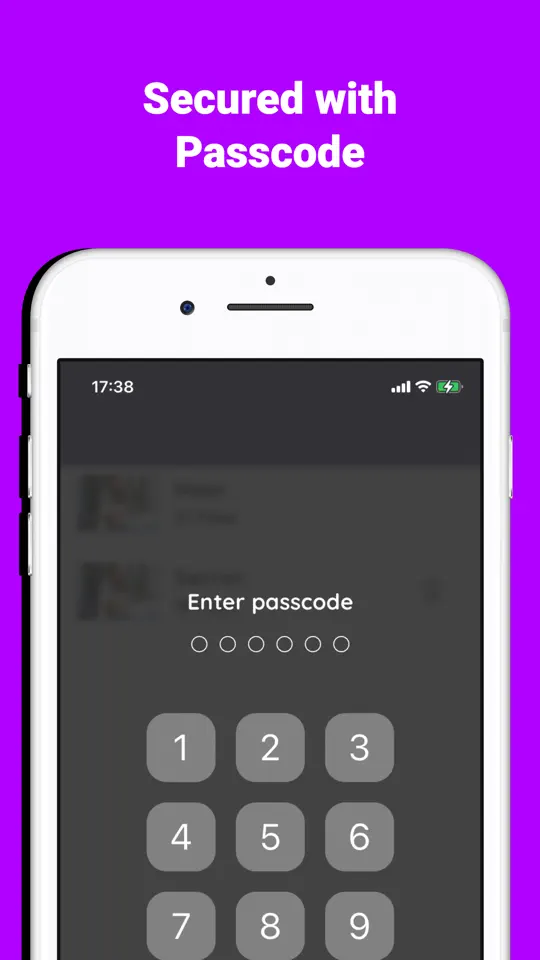
Secret Photos Vault (listed on the App Store as Secret Vault: Lock Files, Docs) is an app to lock documents on iPhone. Files you add are encrypted on the phone and open only after your vault PIN or Face ID, which is separate from your iPhone passcode. It works offline: nothing is uploaded to a server.
Set your vault PIN
When you first open the app, choose a PIN that is different from your iPhone passcode. You can turn on Face ID in Settings for quicker unlocking.
Add files from the Files app
Open the Documents section, tap the add button and pick one or more files. Each file is encrypted with AES-256 encryption as it's added, and a progress screen shows how far it is.
Delete the unprotected originals
When the import is done, go back to the Files app, delete the originals you no longer need and empty Recently Deleted, so the only readable copy is the one in the vault.
Open and read documents in the vault
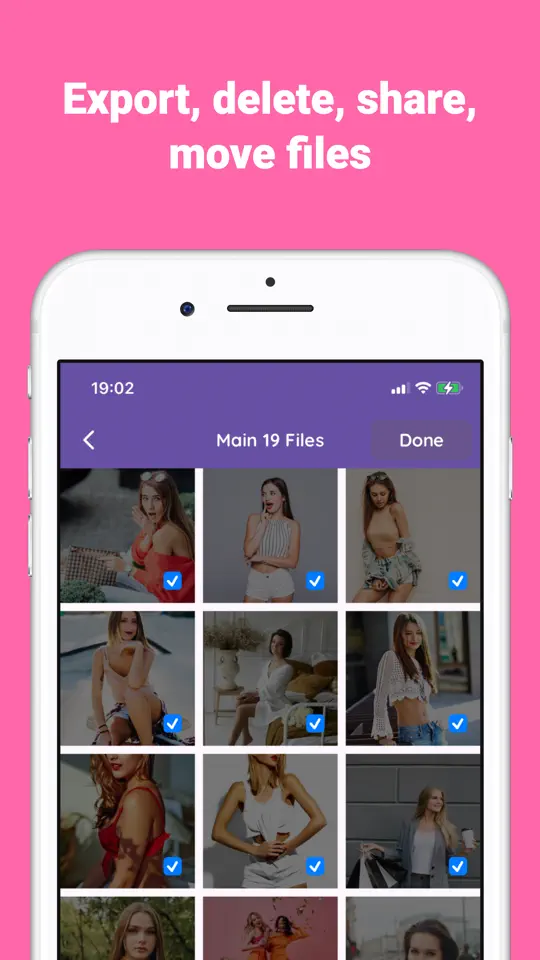
Tap a document to view it. PDFs open in a viewer, and Word, Excel, PowerPoint and CSV files show their text and tables, read-only, without leaving the app.
Share a copy only when you need to
Use the share option on a document to send a readable copy by Mail or AirDrop, for example to your accountant.


- Separate PIN or Face ID
Someone who knows your iPhone passcode still can't open the vault.
- Locks when you leave
Switch to another app and the vault locks again, and temporary readable copies are deleted.
- Intruder selfie
Turn it on and the app takes a front-camera photo with the time after three wrong PIN attempts, so you know someone tried.
- Offline storage only
Documents stay on your iPhone and aren't sent to any server.
- Favorites
Mark the documents you open often, such as an ID scan, so they're one tap away.

Tips for keeping documents on your iPhone private
- Save every document password in the Passwords app or another password manager. A forgotten password on a locked file usually can't be recovered.
- Use a vault PIN that isn't your iPhone passcode, your birthday or 1234.
- Keep a copy of irreplaceable documents somewhere else, such as a computer, because files stored only on the phone are lost with the phone.
- Review your Downloads folder every month and move or delete old attachments.
- In Secret Photos Vault, the free version holds one document. Vault Pro removes the limit if you want to store more.
Frequently asked questions
Can you lock a folder on iPhone?
Not with a password of its own. You can lock individual PDFs and Pages files, or lock the whole Files app with Face ID on iOS 18 and later. To protect a group of files with one PIN, you need a vault app.
How do I put a password on a PDF on iPhone?
Open the PDF in the Files app, tap Share, choose Lock PDF and enter a password twice. If you don't see the option, open the file in Pages and export it as a PDF with a password.
Can I lock the Files app with Face ID?
Yes, on iOS 18 or later: press and hold the Files icon and tap Require Face ID. It falls back to your iPhone passcode, so it only stops people who don't know that passcode.
What happens if I forget a document password?
In most cases the file can't be opened again, because the password is what decrypts it. Store passwords in a password manager when you create them.
Are files in a vault app uploaded to the cloud?
It depends on the app. Secret Photos Vault keeps everything on your iPhone and has no servers, so nothing is uploaded, but deleting the app or losing the phone also loses the files.
Summary
To password protect files on iPhone, use Lock PDF for PDFs, Set Password in Pages, Numbers and Keynote, and Require Face ID on the Files app, then empty Recently Deleted. When you want a whole set of documents behind a PIN that's different from your passcode, Secret Photos Vault encrypts them on your phone and locks again every time you leave. Try it with the one document you'd least like someone else to see.
More guides
iPhone
How to Lock Photos on iPhone With a Password, Not Your Passcode
The Hidden album opens with the same passcode that unlocks your phone. Here is how to put private photos behind a different password, with and without an app.

 Android & iPhone
What to Do When the Gym Is Busy: Smart Exercise Swaps
Every squat rack is taken and the bench has a line. Here is how to keep your workout on plan by reordering and swapping exercises instead of waiting.