iPhone guide
How to Lock Photos on iPhone With a Password, Not Your Passcode
The Hidden album opens with the same passcode that unlocks your phone. Here is how to put private photos behind a different password, with and without an app.
 Secret Photos Vault
5 min read
Many people want to lock photos on iPhone with a password because someone else in the house knows the phone's passcode. A partner, a child or a friend who borrows your phone can open almost everything, including the Hidden album.
This guide explains exactly what Apple's built-in lock protects, the free workaround that gives you a separate password, and when a dedicated vault app is the better choice.
Why the Hidden album on iPhone is not enough
The hidden album iPhone feature does two things: it removes photos from your library, Memories and widgets, and it puts them behind Face ID, Touch ID or your device passcode. That stops a quick glance. It does not stop anyone who already knows your passcode.
There is no setting for a separate password for hidden photos. Apple Community threads asking for one end the same way: the Hidden album uses the same unlock as the phone. Changing "the Hidden album password" really means changing your iPhone passcode.
Hiding is also not the same as moving. Hidden photos are still part of your photo library, so they sync to every device signed in to the same iCloud account with iCloud Photos turned on.
When you need a different password for private photos on iPhone
Someone else knows your passcode
Family members often share passcodes for emergencies. Anyone with that code can open the Hidden album in a few seconds.
You hand your phone over a lot
Kids playing games or friends looking at a trip album can wander into Albums. A second password keeps sensitive pictures out of reach while the phone is unlocked.
Your photo library is shared
With iCloud Photos or a shared family Apple Account, hidden photos follow the library to an iPad or Mac that other people use.
Photos of documents
Pictures of a passport, ID card or bank card are some of the most sensitive files on a phone. They deserve a lock of their own, not just a spot in the camera roll.
How to lock photos on iPhone with a password using Notes
Apple's Notes app is the only built-in app that lets you choose a password that is different from your passcode. It works best for a small number of pictures.
Set a custom Notes password
Open Settings > Apps > Notes > Password (on iOS 17 and earlier, Settings > Notes > Password). Choose the account, select Use Custom Password, enter it twice and add a hint. Turn Face ID off here if you want only the password to work.
Put the photo in a note
In Photos, open the picture, tap Share and choose Notes, or create a note and add the photo from your library.
Lock the note
Open the note, tap the More button and choose Lock. From now on the note shows only its title until someone enters your Notes password.
Remove the original
Delete the photo from the Photos app. If you skip this, the original stays in your library and the locked note protects nothing.
Empty Recently Deleted
Deleted pictures move to the Recently Deleted album for about 30 days. Open it under Utilities in the Albums view, unlock it, select the photos and delete them for good.
The faster way
Use a photo vault app with its own PIN
Notes is fine for a handful of photos, but it can't hold videos well or organise them into albums. Secret Photos Vault is a photo vault app for iPhone with a PIN that has nothing to do with your device passcode, and it works as an encrypted photo vault: every file it stores is encrypted.
Create your vault PIN
Open Secret Photos Vault and set a 6-digit PIN. You can turn on Face ID as well, or keep the PIN as the only way in.
Make an album
A default album is ready for you, and you can add your own, for example Documents, Personal or Receipts.
Import photos and videos
Pick pictures and videos from your library. The app copies them into the vault and encrypts them on your iPhone.
Delete the originals
When the import finishes, the app offers to remove the originals from Photos for you. Accept, then empty Recently Deleted so no copy is left behind.
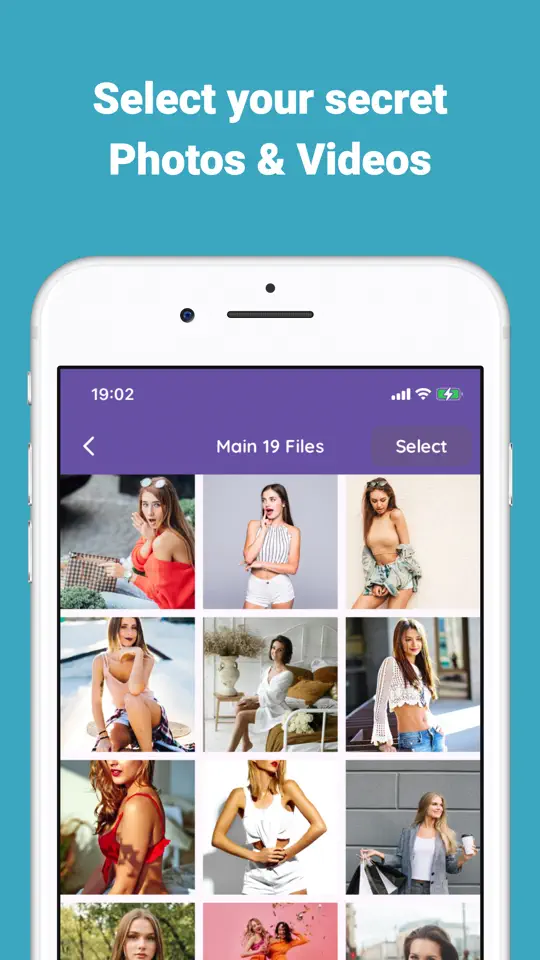
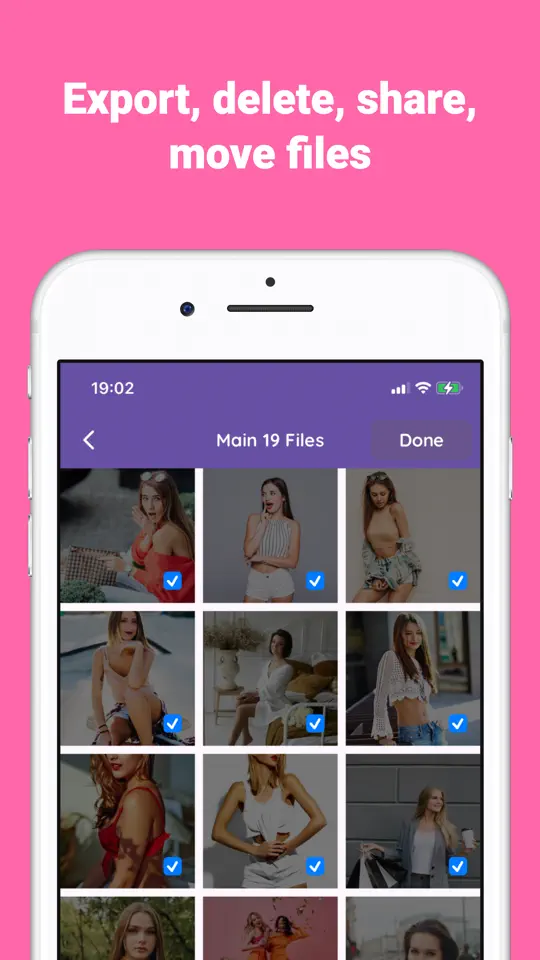

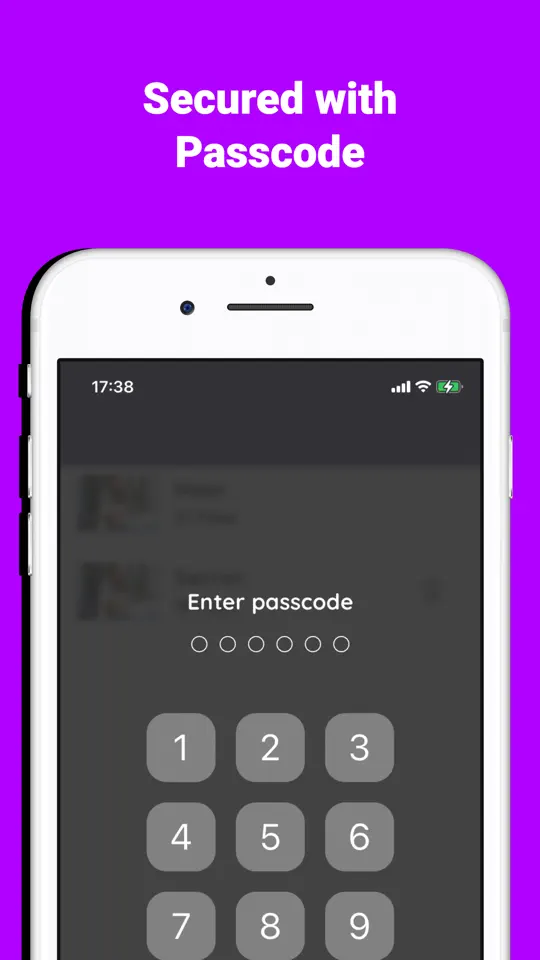
- Separate PIN and optional Face ID
Knowing your iPhone passcode does not open the vault, which is the whole point.
- Encryption on the device
Files are stored with AES-256 encryption, so they can't be viewed by browsing the phone's storage. The app does not upload them to a cloud server.
- Intruder photo
After three wrong PIN attempts the app can take a picture with the front camera and log the time, so you know someone tried.
- Decoy PIN and panic lock
A second PIN can open a harmless decoy vault, and shaking the phone or turning it face down can lock the vault instantly.
- Encrypted backup
Export an encrypted backup file and save it somewhere safe, then restore it on a new phone.

Tips for keeping private photos on iPhone private
- Always empty Recently Deleted after moving photos anywhere. It is the most common place hidden pictures are found.
- Check Settings > Apps > Photos and turn off Show Hidden Album, so the album does not appear in Utilities at all.
- Pick a vault PIN that is different from your phone passcode and your bank PIN. Reusing a code defeats the purpose.
- A vault that stores files only on your phone is lost with the phone. Export an encrypted backup now and then.
- Remember that photos shared in Messages or WhatsApp keep their own copies in those chats.
Frequently asked questions
Can I set a different password for the Hidden album on iPhone?
No. The Hidden album opens with Face ID, Touch ID or your device passcode, and iOS has no option for a separate password. For a different password, use a locked note or a vault app.
Are hidden photos on iPhone encrypted?
Your iPhone encrypts its storage as a whole, but the Hidden album itself is only a locked view of your normal library. Anyone who unlocks the phone and knows the passcode can open it.
How do I hide photos on iPhone from someone who knows my passcode?
Move them out of the Photos app into something with its own password, such as a note with a custom Notes password or a photo vault app, then delete the originals and empty Recently Deleted.
Can I lock the whole Photos app?
On iOS 18 and later you can touch and hold the Photos icon and choose Require Face ID. It still uses your device passcode as the backup, so it doesn't help against someone who knows it.
Do photos stay in Recently Deleted after I move them to a vault app?
Yes. When the originals are deleted they go to Recently Deleted for about 30 days. Empty that album yourself to remove them right away.
Summary
If the only goal is to keep photos out of your main library, the Hidden album is enough. If you need to lock photos on iPhone with a password that someone who knows your passcode can't guess, use a locked note for a few pictures or Secret Photos Vault for whole albums of photos and videos. Whichever you choose, delete the originals and empty Recently Deleted.