iPhone guide
How to Delete Similar Photos on iPhone, Not Just Duplicates
The iPhone Duplicates album only catches copies. Here is how to find and clear the near-identical shots, quick bursts and old screenshots that really fill your library.
 Smart Cleaner: Photos & Memory
6 min read
If you want to delete similar photos on iPhone, the built-in Duplicates album is a good start, but it rarely finds the photos that actually pile up: five almost identical shots of the same sunset, a dozen frames of a kid blowing out candles, the same receipt photographed twice.
This guide shows what the Photos app can do on its own, how to clear look-alike shots by hand, and a quicker way to review them in groups before anything is deleted.
Why the Duplicates album misses similar photos
Since iOS 16, the Photos app has a Duplicates album that finds copies of the same photo or video and lets you merge them. Apple keeps one version and moves the extra copies to Recently Deleted.
The catch is that this feature is cautious. It is built to find copies, not shots that only look alike. Two photos taken a second apart, with a slightly different smile or angle, are separate pictures to your iPhone, so they never show up there.
Those near-identical photos are usually the bigger problem. Each one is a full-size file, and when you take several of every moment, they quietly push your iPhone storage toward full.
Where look-alike photos on your iPhone come from
Taking "one more, just in case"
Group photos, food and scenery often get three to ten quick taps of the shutter. You keep the best one in your head, but all of them stay in the library.
Burst photos and rapid taps
Holding the shutter takes a burst, and fast repeated taps do much the same. Dozens of frames can come from a few seconds.
Saved and edited copies
Saving the same picture from a chat, a website and an email, or exporting an edit, leaves several versions of one image.
Screenshots you no longer need
Screenshots of directions, codes and receipts are useful for a day, then sit in the library for years.
How to delete similar photos on iPhone without an app
These steps use only the Photos app. Menu names below are for iOS 18 and iOS 26; on older versions, look under the Albums tab instead of Collections.
Merge exact copies first
Open Photos, go to Collections, scroll to Utilities and tap Duplicates. Tap Select, choose the sets you want (or Select All), then tap Merge. Your iPhone keeps one copy of each and moves the rest to Recently Deleted.
If the Duplicates album is missing
Apple says it only appears once your iPhone has found duplicates. Scanning runs while the phone is locked and charging and can take up to a few days on a large library.
Find similar shots by date
Open your Library and scroll through by day or month. Look-alike photos sit next to each other because they were taken at the same moment, which makes them easy to spot.
Delete several at once
Tap Select, then tap each extra photo or slide your finger sideways across a row to pick many quickly. Tap the trash button and confirm. Open a photo full screen first if you are not sure which shot is sharpest.
Trim burst photos
Open a burst, tap Select, tick the frames you want to keep and tap Done. Choose Keep Only Favorites and the other frames are deleted.
Clear out old screenshots
In Collections, open Media Types > Screenshots. Select the ones you no longer need and delete them.
Empty Recently Deleted
Deleted photos stay in the Recently Deleted album for 30 days. Open it from Utilities, unlock it with Face ID or your passcode, and delete everything to free the space now.
The faster way
A faster way to find and delete similar photos with Smart Cleaner
Scrolling month by month works, but it is slow and easy to miss shots. Smart Cleaner: Photos & Memory is a duplicate photo cleaner app that compares what is actually in each image, groups the look-alikes for you, and lets you review every group before anything is removed. It runs on your device with no account and no cloud upload.
Allow photo access and scan
Open the app and give it access to your photos. It scans your recent photos on the phone and sorts what it finds into Duplicates, Burst, Screenshots and Large Files.
Open Duplicates to see look-alike groups
Each group holds photos that look nearly the same, even if they have different file names or were taken at different times. The highest-resolution copy is left unselected so it stays; the rest are selected for deletion.
Check before you delete
Tap a photo to change whether it is selected, or press and hold to see it full screen. Nothing is deleted until you confirm.
Repeat for bursts and screenshots
The Burst category groups photos taken within about two seconds of each other. Screenshots shows them all in one place, with nothing pre-selected, so you pick what goes.
Empty Recently Deleted
On iPhone, photos removed by the app go to Recently Deleted like any other deletion. Empty it in the Photos app to get the storage back right away.
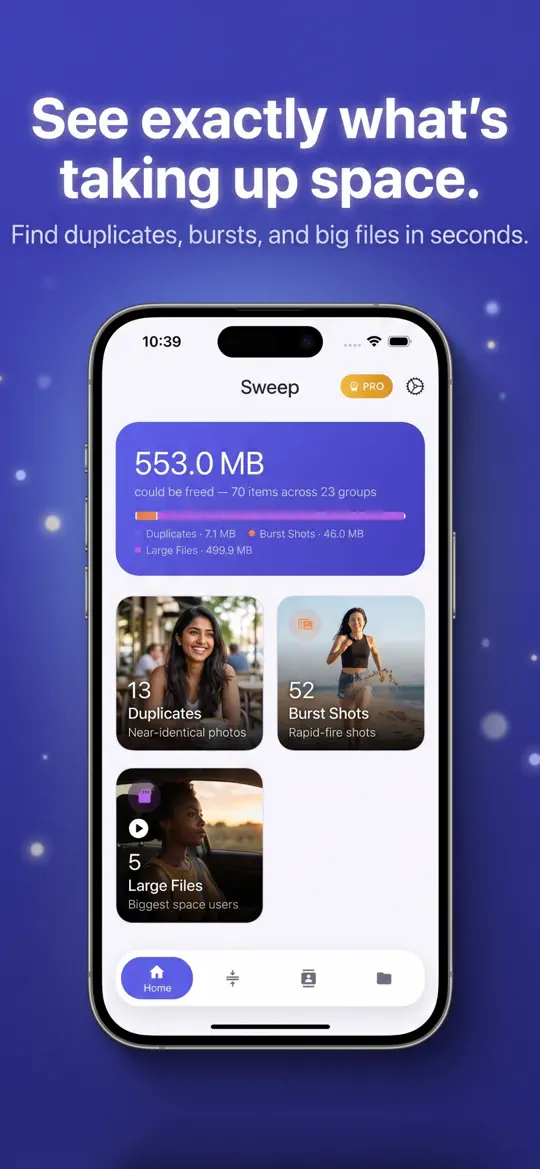
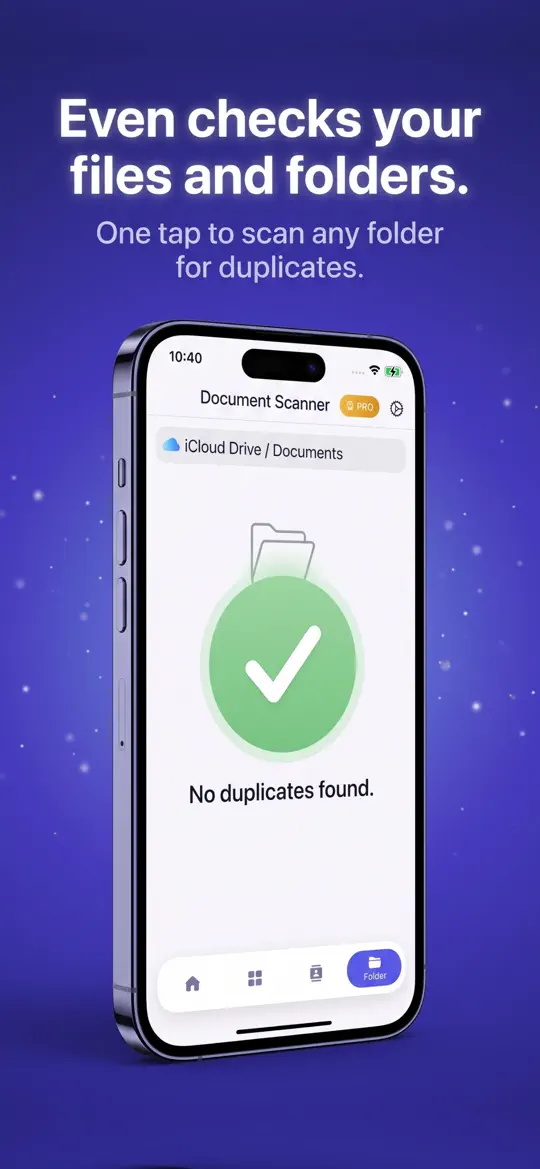

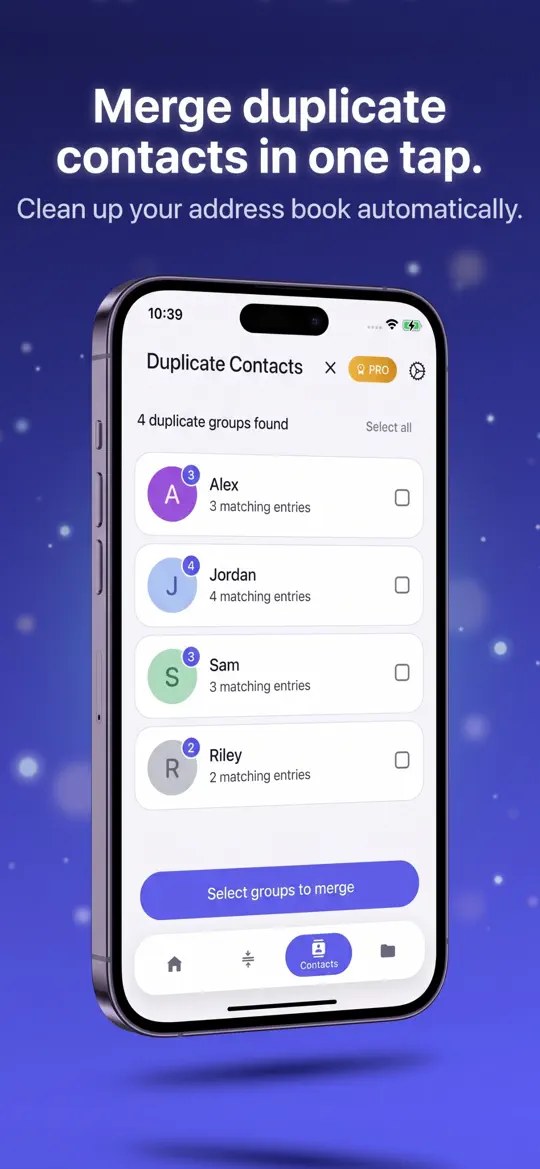
- Image-based duplicate matching
Finds near-identical photos by what is in the picture, which is exactly the kind the Duplicates album skips.
- Burst grouping
Collects rapid-fire shots from the same moment so you can keep one and clear the rest in a single step.
- Review before delete
Every group shows you what was found, with one copy kept by default, so a favorite photo is never removed without your OK.
- Large files and compression
Shows the biggest photos and videos in your library and can shrink them on the device, with a quality slider you control.
- Private by design
Scanning happens on the phone. No account is needed and your photos are never uploaded.

Tips for keeping look-alike photos under control
- Clean up right after a trip or event, while you still remember which shot you liked best.
- Mark the shot you love as a Favorite before you clear the rest, so it is easy to find later.
- If you use iCloud Photos, deleting a photo on your iPhone also deletes it from iCloud and your other devices. Back up anything you are unsure about first.
- Check Settings > General > iPhone Storage before and after a cleanup to see how much space you actually got back.
- Do a few minutes of cleanup each week instead of one huge session once a year.
Frequently asked questions
Why doesn't the Duplicates album show similar photos?
The Duplicates album is designed to find copies of the same image, so photos taken a moment apart with small differences are treated as separate pictures. To clear those, review them by date in your Library or use an app that groups near-identical photos.
Why is my Duplicates album missing?
It only appears after your iPhone has found duplicates. Apple says the scan runs while the iPhone is locked and charging and can take up to a few days, so leave it plugged in overnight and check again.
Does deleting photos free up iPhone storage right away?
Not until you empty Recently Deleted. Deleted photos stay there for 30 days, and they only stop using space once they are removed from that album too.
How do I delete burst photos but keep one?
Open the burst, tap Select, tick the frame you want and tap Done, then choose Keep Only Favorites. The other frames are deleted.
Is it safe to use a duplicate photo cleaner app?
Choose one that shows you each group before deleting and works on your device without uploading your library. Smart Cleaner keeps one copy in each group by default and never deletes anything until you confirm.
Summary
The Duplicates album clears exact copies, but the near-identical shots, bursts and old screenshots are where most of the wasted space hides. You can work through them by hand in the Photos app, or let Smart Cleaner: Photos & Memory group them for you so you can review, keep the best shot and delete similar photos on iPhone in a few taps. Either way, finish by emptying Recently Deleted.